
Navigating the HTML designer
The HTML designer is where you construct HTML report templates. The designer is embedded within Qlik Sense apps.
The HTML designer allows you to work with HTML code and integrate app content into your template.
The HTML designer
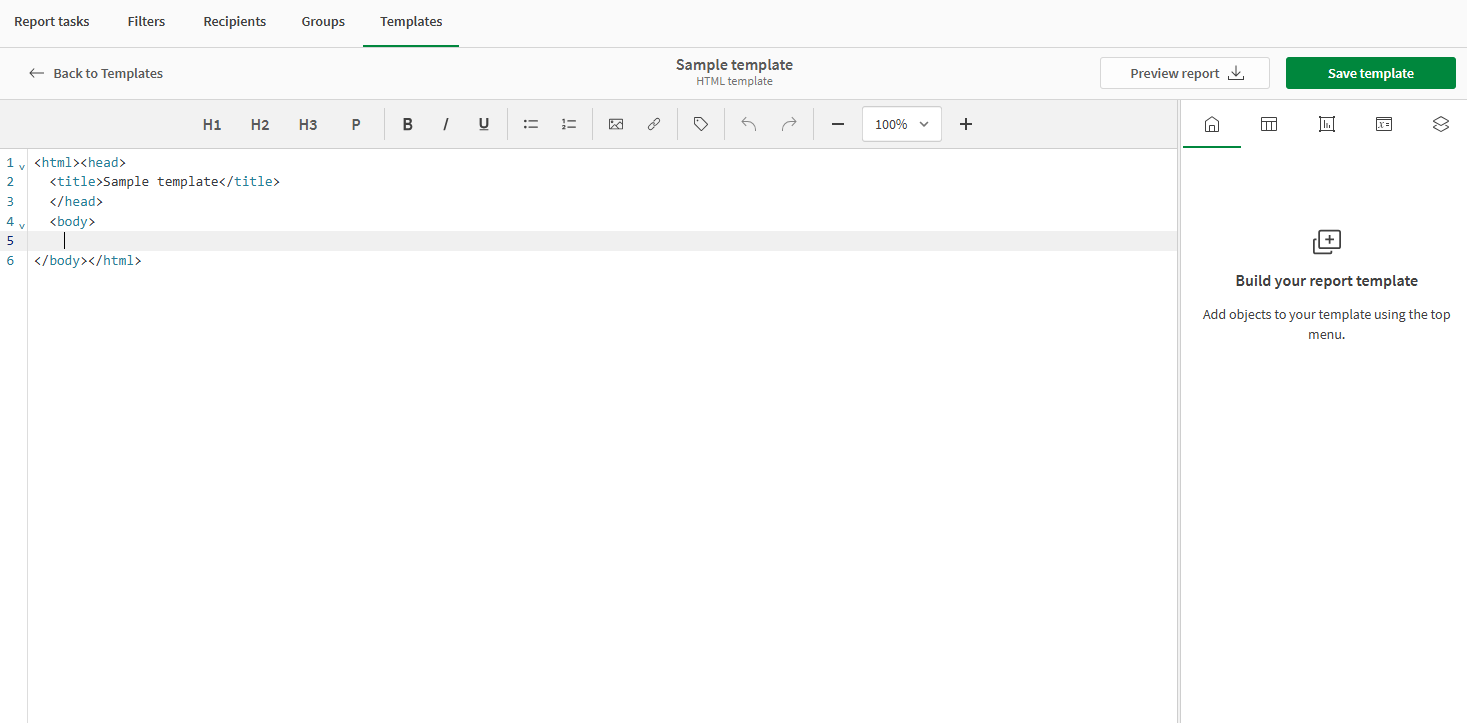
Opening the HTML designer
You open the HTML designer by creating a new HTML template, or editing an existing one.
Do the following:
-
In your app, use the drop down menu in the navigation bar and select Reporting.
-
Switch to the Templates tab.
-
In the top right, click Create new > HTML template.
-
Enter a Name for the template.
The HTML designer opens.
Designer toolbar
The designer toolbar is located at the top of the HTML designer. In the toolbar, you can:
-
Easily add common HTML elements to your template, such as headers, paragraphs, and lists.
-
Add external images to your template. For example, you can add your company logo.
-
Add recipient tags. For more information, see Adding recipient placeholder tags.
-
Undo and redo actions, and adjust the zoom level.
For more information, see Adding standard HTML code to your template.
Design surface
The design surface is shown in the center of the designer. This is where your template content is shown. It is a canvas where you add template content in the form of HTML code and references to app objects you have added in the objects panel.
Objects panel
The objects panel is located on the right side of the designer. You use the objects panel to create and manage objects from the analysis app, and add them as content to the template. Resize the panel as needed.
You can access the following menus from the top of the objects panel:
-
 : The home menu. This is where you start when you create your template.
 -
 : The Tables menu. This is where you add tabular data to the template.
 -
 : The Charts menu. This is where you add chart images to the template.
 -
 : The Variables and expressions menu. This where you add variables and expressions to the template.
 -
 : The Levels menu. This is where you add levels to the template, for iterations of filtered content.