
Customizing data representation in a write table
A number of settings are available for formatting and representing data in your Write table.
Showing totals
Under Appearance > Presentation, you can configure whether a row is displayed in the chart to show totals. Use the Totals toggle to select between the following options:
- Auto: If the table includes totals, they are automatically included at the top of the table.
- Custom: Select whether to display the totals and whether to display them at the top or bottom.
If you have selected to show totals, you can configure the label for the totals row by entering a value or expression for Totals label.
Configuring totals calculations
If you have selected to show a totals row, you can set a custom aggregation to use for a numeric measure total. This aggregation overrides the calculation used by the measure.
Do the following:
-
In the properties panel, expand Data and click a numeric measure.
The measure properties open.
-
Under Fields, use the Totals function drop down menu to select one of the following:
-
Auto
-
Avg
-
Count
-
Max
-
Min
-
Sum
-
None (totals for the measure are shown with -)
Information noteThese settings are column-level, so they can be overridden if the totals row is hidden entirely in the chart. See Customizing data representation in a straight table.
-
Setting a limitation
You can define whether or not to limit the number of displayed dimension values. When you set a limitation, the only dimensions displayed are those where the measure value meets the limitation criterion.
Do the following:
-
Under Data, click on a dimension to expand its properties.
-
Under Field in the properties, select an option in the Limitation drop down. The options are:
-
No limitation: The default value.
-
Fixed number: Select to display the top or bottom values. Set the number of values. You can also use an expression to set the number.
-
Exact value: Use the operators and set the exact limit value. You can also use an expression to set the number.
-
Relative value: Use the operators and set the relative limit value in percent. You can also use an expression to set the number.
-
Applying a show condition
Do the following:
-
Under Data, select a dimension and open Presentation in the properties.
-
Under Show column if, type an expression to define when the column is shown during analysis.
Formatting dimension representation
You can format dimension columns to show values, links, or images using Representation in the properties panel. You can select the following representations:
-
Text: Displays the dimension values as text. This is the default value.
-
Link: Displays values as clickable links. Either the dimension value is used or the URL or you can add other URLs to the displayed dimension values.
-
Image: Displays values as images.
Formatting links
The character ; is not supported as a query parameter separator in a URL.
Do the following:
-
Under Data, select a dimension and open Presentation in the properties.
-
Under Representation, select Link.
-
Under Link setting, select one of the following:
-
Add label: The dimension contains the destination URL in either the dimension expression or the data table. The links are displayed and ordered by destination URL expression.
Under Link label, enter a descriptive text label for the destination URL. Click
 to open the expression editor.
 -
Add URL: The dimension values become selectable text links that are labels for the URLs.
Under Link URL, enter the destination URL expression. Click
to open the expression editor.
-
Formatting images
Images in straight tables and write tables are only accessible from servers and domains that have been safe-listed. Administrators make these resources available in Administration by adding Content-Security-Policies (CSP) for each server or domain. CSP helps to prevent cross-site scripting attacks by controlling what resources a browser can request from a server.
The character ; is not supported as a query parameter separator in a URL.
Do the following:
-
Under Data, select a dimension and open Presentation in the properties.
-
Under Representation, select Image.
-
Under Image setting, select one of the following:
-
Add label: The dimension contains the absolute URL to the image in either the dimension expression or the data table. The links are displayed and ordered by the URL expression.
Under Image label, enter a descriptive text label for the image that displays as alternative text when the image is hovered over. Click
to open the expression editor. -
Add URL: The dimension values become labels for the alternative text that displays when the image is hovered over.
Under Image URL, enter the destination URL expression. Click
to open the expression editor.
-
-
Under Sizing, select one of the following sizing options:
-
Always fit
-
Fit to width
-
Fit to height
-
Stretch to fit
-
Original size
-
-
Under Position, select the image position within the cell.
Formatting measure representation
You can format measure columns using Representation in the properties panel. You can select the following representations:
- Text: Displays measure values as text. This is the default value.
-
Image: Displays measure values as images.
-
Indicator: Displays customizable indicator symbols in measure cells. Text representations for each value can be shown or hidden alongside these indicators, depending on preference.
-
Mini chart: Displays a small chart for each measure value. Each mini chart shows the changes for the measure along a specific dimension, which is configured separately from the other dimensions in the table.
More information about the representation options is outlined below.
Formatting images
Images in straight tables and write tables are only accessible from servers and domains that have been safe-listed. Administrators make these resources available in Administration by adding Content-Security-Policies (CSP) for each server or domain. CSP helps to prevent cross-site scripting attacks by controlling what resources a browser can request from a server.
The character ; is not supported as a query parameter separator in a URL.
Do the following:
-
Under Data, select a measure and open Presentation in the properties.
-
Under Representation, select Image.
-
Under Image setting, select one of the following:
-
Add label: The measure value contains the absolute URL to the image in either the measure expression or the data table. The links are displayed and ordered by the URL expression.
Under Image label, enter a descriptive text label for the image that displays as alternative text when the image is hovered over. Click
to open the expression editor. -
Add URL: The measure values become labels for the alternative text that displays when the image is hovered over.
Under Image URL, enter the destination URL expression. Click
to open the expression editor.
-
-
Under Sizing, select one of the following sizing options:
-
Always fit
-
Fit to width
-
Fit to height
-
Stretch to fit
-
Original size
-
-
Under Position, select the image position within the cell.
Adding a trend indicator to a measure
You can add a trend indicator to a measure column. This will show a symbol next to the measure value. You can define the ranges that determine which symbol is displayed and in which color it is displayed. You enable the indicator by setting Representation to Indicator in the measure properties.
Do the following:
-
In the properties panel, expand Data and click a measure.
The measure properties open.
-
Under Presentation, set Representation to Indicator.
-
Click the rectangle below the Add limit button, containing a color and symbol. You can set the color and symbol for the indicator.
If you add one or more limits, you can adjust the color and symbol for each range by clicking the range in this rectangle.
-
Set additional properties for the indicators, which are detailed in the sections below.
Setting the indicator limits
You need to add the limits for the ranges you want to use for showing indicators with Add limit. You can set a limit value in three ways.
- Use the slider.
- Type a value in the text box.
- Set an expression that returns the limit value.
When you have added the limits, you can select the color and the symbol of the indicator for each defined range.
Styling the indicators
You can style the way the indicators are displayed.
-
You can show both the indicator and the measure value by selecting Show values.
-
You can set the value color to the same as the indicator color with Apply color to value.
Information noteWith this setting on, the indicator color overrides the current cell value color if it is defined in other properties for the chart. -
You can display the indicator to the right or to the left of the value with Indicator position.
-
When you have one or more limits, toggle on Gradient to color the indicators with gradients between the colors.
Example:
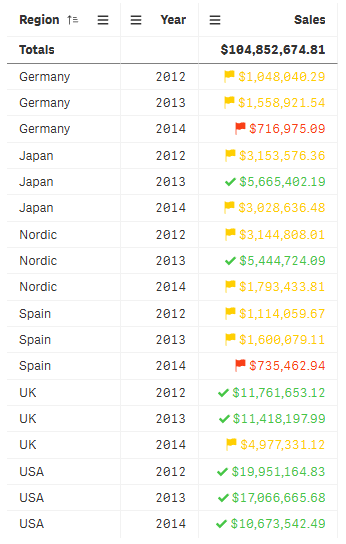
In this example, we added a trend indicator to the Sales measure to indicate which values are below the target value. The indicator limits are:
- For values below $1,000,000.00, a red flag is displayed.
- For values in the range of $1,000,000.01 and $4,999,999.99, a yellow flag is displayed.
- For values above $5,000,000.00, a green check-mark is displayed.
Table with trend indicators
Formatting measure values as mini charts
You can represent a measure as a series of mini charts, rather than a series of text values. The mini charts visualize the measure values within the context of the data in the table, as well as an additional dimension that you select.
Using mini charts allows you to provide more context about prominent or related dimensions. For example, in table containing a dimension Product and a measure Sum(Sales), you could represent the measure as a series of mini charts breaking down each product's sales by month.
Do the following:
-
In the properties panel, expand Data and click a measure.
The measure properties open.
-
Under Presentation, set Representation to Mini chart.
-
Under Select dimension, select the dimension that will be used to visualize the data in each mini chart.
-
Under Type, pick a chart type. Bars, Dots, Sparkline, and Positive/negative are available.
-
Set additional properties for the mini charts, which are detailed in the sections below.
Configuring mini chart appearance
You can set the colors to use, and whether or not to show points on the mini charts.
Expand Colors to access all options for the mini chart colors. Each type of mini chart has different settings.
Check or uncheck the Show dots setting to show or hide data points on the mini charts.
Configuring mini chart data
You can further customize the data used in the mini charts with these settings:
-
Select whether or not to include null values in mini charts by toggling the Include null values setting.
-
Mini charts can show data for up to 100 unique values for the mini chart dimension you select. By default, additional dimension values are not shown. Turn on Show others to represent all additional dimension values by combining them into a single dimension value at the end of each mini chart.
-
Under Y-axis, you can adjust what values are used for the Y-axis. Use the Local setting to set Y-axis values in comparison to the data shown in the mini charts. Use the Global setting to set Y-axis values in comparison to all data. You can also configure how positive and negative values are represented by selecting between the Auto, Zero as baseline, or Zero as center settings.
Working with add-ons
Write tables have the following options under Add-ons in the properties panel:
Data handling:
- Include zero values: When unselected, measures that have the value ‘0’ are not included in the presentation. If there is more than one measure value, all the measure values must have the value ‘0’ to be excluded from the presentation.
-
Calculation condition: Specify an expression in this text field to set a condition that needs to be fulfilled (true) for the object to be displayed. The value may be entered as a calculated formula. For example: count(distinct Team)<3. If the condition is not fulfilled, the message or expression entered in Displayed message is displayed.
A calculation condition is useful when a chart or table is slow to respond due to a large amount of data. You can use the calculation condition to hide an object until the user has filtered the data to a more manageable level by applying selections. Use the Displayed message property to guide the user to filter the data.