Customizing the access request process
You can use your own process for requesting access instead of the default Qlik process. To do this, turn off the permission to request access and customize the access request message to guide users to your organization's process.
Overview
By default, users can request access when they try to open an app through a shared link but don’t have permission. Space owners and members with the Can manage role receive a notification and can grant access.
If your organization uses a different access request flow, such as a helpdesk or service portal, you can replace the default behavior. To do this:
-
Turn off the Request access to content permission for users.
-
Customize the message shown to users when they try to access content.
The message can include instructions and a link to your organization's process.
For details on the default access request flow, see Approving access requests and Requesting app access.
Turning off default access requests
Tenant administrators can turn off the Request access to content permission in the User Default settings.
Do the following:
-
In the Administration activity center, go to Manage users > Permissions.
-
Click User Default above the table.
-
Click Features and actions and select Space management.
-
Set Request access to content to Not allowed.
-
Click Confirm.
Customizing the access request message
A pre-defined message is shown until you customize it.
Default access request message shown to users before customization.

Changes are saved automatically and shown to all users who don't have the Request access to content permission. Only one message can exist at a time—updating it replaces the previous text.
Do the following:
-
In the Administration activity center, go to Settings > Tenant > Other.
-
Enter the message text (maximum 255 characters).
-
(Optional) Add a link:
-
Turn on the Link toggle.
-
Enter the link text.
-
Enter the link URL.
-
Changes are saved automatically.
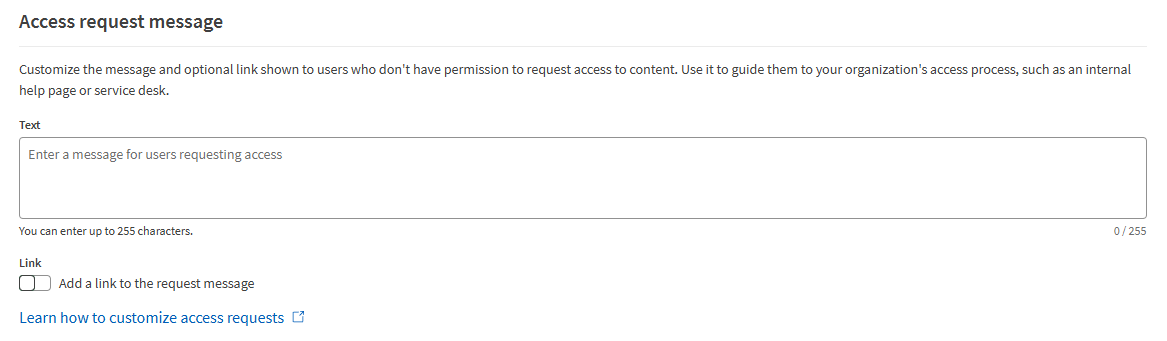
Settings for access request message.
Example message for users
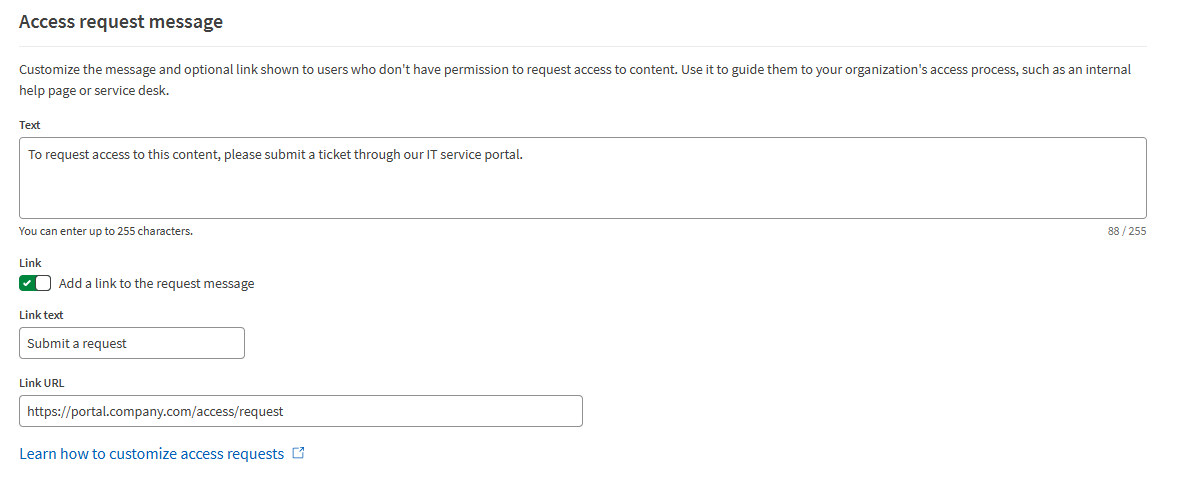
Here’s an example of a customized message, including a link, that guides users to your organization’s access request process:
-
Text: "To request access to this content, please submit a ticket through our IT service portal."
-
Link text: "Submit a request"
-
Link URL: Link to the service portal page
Settings showing example message text and link.
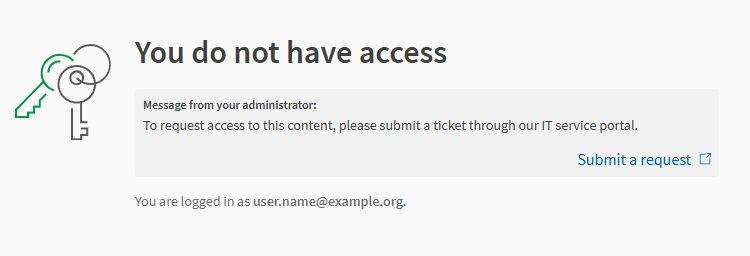
This is how the example message appears to users who try to access content they don’t have permission for:
Customized access request message shown to users.